Allen-Bradley PanelView Troubleshooting Guide
By Replace Industrial · October 9, 2026 · 6 min read
Contents
- Allen-Bradley PanelView Troubleshooting: Common HMI Problems
- Introduction
- Common Allen-Bradley PanelView Problems
- PanelView Has a Blank or Black Display
- PanelView Touchscreen Not Responding
- PanelView Communication Errors
- PanelView Keeps Restarting
- PanelView Will Not Boot
- Intermittent PanelView Operation
- Alarm and Diagnostic Messages
- Check the PanelView Power and Wiring
- Check PLC and Network Communications
- Consider the Operating Environment
- Repair or Replace the PanelView?
- Identify Your PanelView Before Ordering a Replacement
- Need an Allen-Bradley PanelView Replacement?
Allen-Bradley PanelView Troubleshooting: Common HMI Problems
Introduction
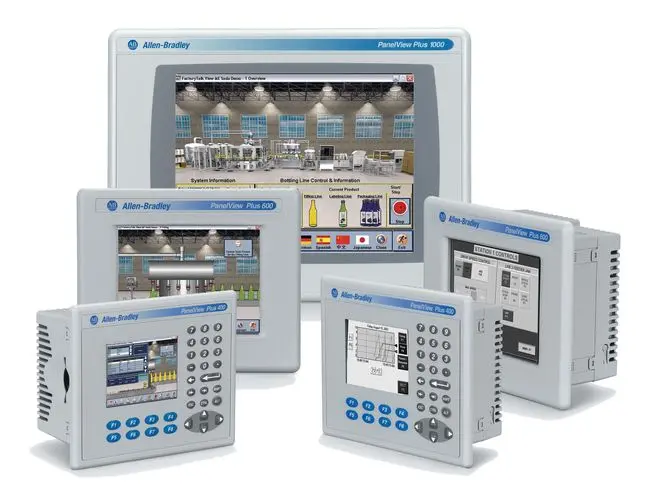
Allen-Bradley PanelView HMIs are used to give operators access to machine status, alarms, process information, diagnostics, and permitted controls. When a PanelView stops operating correctly, however, the HMI itself is not always the source of the problem. Power, wiring, PLC communications, network connections, configuration, environmental conditions, and the surrounding installation can all affect PanelView operation. Before replacing a terminal, identify the symptoms as precisely as possible and record the complete catalog number, series, revision, and other information from the product label. A clear photo of the label can also be useful when troubleshooting an older PanelView or searching for replacement hardware. For a broader overview of PanelView applications, generations, operating environments, and replacement considerations, see our Allen-Bradley PanelView HMI Guide.
Common Allen-Bradley PanelView Problems
PanelView problems can appear in several different ways. The symptoms you observe can help determine what should be checked before assuming the complete terminal needs to be replaced.
PanelView Has a Blank or Black Display
If the PanelView display is completely blank, begin by determining whether the terminal appears to be receiving power. A blank screen does not necessarily mean that the display itself has failed. Depending on the application and PanelView model, possible areas to investigate include incoming power, wiring and connections, the display, internal hardware, and the surrounding installation. Look for other signs that the terminal is operating. If the PanelView appears to power up but nothing is visible on the screen, the problem may be different from a terminal showing no signs of power at all. Document exactly what happens when power is applied before disconnecting or replacing the unit.
PanelView Touchscreen Not Responding
A PanelView may display information normally while no longer responding correctly to touchscreen input. The first step is to determine whether the problem affects the entire touchscreen or only a particular area. Inspect the screen and bezel for physical damage, contamination, moisture, or other visible problems. Also consider whether anything recently changed around the equipment. Cleaning procedures, moisture exposure, physical impact, or changes in the operating environment can provide useful clues. Depending on the PanelView family and condition of the terminal, a touchscreen problem may involve the touchscreen assembly, calibration or configuration, other hardware, or the complete terminal. Do not assume that a similar-looking replacement touchscreen or HMI is compatible without identifying the exact PanelView catalog number.
PanelView Communication Errors
A PanelView that powers on and displays information may still be unable to communicate correctly with the control system. Communication problems can involve the HMI, cabling, connectors, network equipment, communication configuration, the PLC or another part of the automation system. Start by determining whether the communication problem appeared suddenly or followed a change to the equipment. If hardware was replaced, wiring was changed, or configuration was modified, document those changes before troubleshooting further. The exact communication method also matters. Different PanelView catalog numbers can support different communication interfaces, which is one reason the complete part number is important when replacing a terminal.
PanelView Keeps Restarting
Unexpected or repeated restarts can be particularly disruptive because the HMI may appear to operate normally between failures. Document how frequently the restart occurs and whether it happens during a particular machine condition. Power quality, connections, environmental conditions, configuration, and problems within the terminal are among the areas that may need to be investigated. Intermittent problems can be difficult to reproduce, so recording when the failure occurs can be valuable.
PanelView Will Not Boot
A PanelView that receives power but does not complete its normal startup process presents a different problem from a terminal that has no power. Record what appears on the display during startup, how far the terminal progresses, and whether any messages appear before the process stops. Avoid immediately assuming that replacing the display or touchscreen will correct a boot problem. The visible symptom may involve another part of the terminal or system.
Intermittent PanelView Operation
Some HMI failures occur only occasionally. The PanelView may operate correctly for hours or days before the problem appears again. When troubleshooting intermittent operation, look for patterns. Consider whether the problem corresponds with machine vibration, temperature changes, equipment startup, moisture, cleaning, or other changes in operating conditions. Also inspect connections and the physical installation. An intermittent problem may be more difficult to diagnose than a complete failure because the equipment can appear normal during inspection.
Alarm and Diagnostic Messages
An alarm displayed on a PanelView does not necessarily indicate that the PanelView itself has failed. One of the primary functions of an HMI is to display information about the automation system. A message shown on the screen may therefore originate from a machine condition, PLC logic, communication problem, sensor, motor, drive, or other equipment rather than the HMI. Record the complete message before clearing or restarting equipment whenever practical. That information can help distinguish an HMI problem from a problem elsewhere in the machine. This also ties naturally to the real-world car-wash example in your existing HMI article: the PanelView displayed information associated with a dryer equipment problem; the HMI itself wasn't necessarily the failed component.
Check the PanelView Power and Wiring
When troubleshooting an HMI, start with the basics before assuming the terminal has suffered an internal failure. Verify that the installation is receiving the expected power and inspect accessible wiring and connections for obvious problems. If the issue began after maintenance or another component was replaced, consider whether anything in the installation changed at the same time. The input-power requirements can vary between PanelView models, making the exact catalog number important when comparing or replacing hardware.
Check PLC and Network Communications
If the HMI powers up normally but cannot display current machine information or communicate with the control system, investigate the communications side of the application. Different PanelView families and catalog numbers can use different communication methods. A replacement terminal therefore needs to be evaluated for compatibility with the existing system rather than selected solely by display size or appearance. If the existing HMI previously communicated correctly, document any recent changes to the PLC, HMI, network, cabling, or other automation equipment.
Consider the Operating Environment
The environment surrounding the PanelView can provide important troubleshooting clues. Moisture, dust, oil, chemicals, temperature, vibration, and cleaning procedures may affect an HMI or its installation over time. Inspect the terminal, bezel, enclosure, seals, connections, and surrounding area for visible evidence of contamination or physical damage. For more information about PanelView applications and environmental considerations, see our Allen-Bradley PanelView HMI Guide.
Repair or Replace the PanelView?
Once the likely source of the problem has been narrowed down, the next question is whether to repair the existing HMI or replace it. (Check out this more in-depth guide on whether to Repair or Replace when it comes to Industrial Automation repairs) The answer can depend on the PanelView family, age, condition, availability of compatible hardware, importance of the machine, and amount of downtime the facility can tolerate. For older systems, maintaining the existing PanelView platform may sometimes avoid the additional engineering required for a larger migration. In other situations, moving to another PanelView generation may make more sense.
Identify Your PanelView Before Ordering a Replacement
If replacement becomes necessary, identify the existing terminal before ordering another HMI. The complete Allen-Bradley catalog number is the best starting point. Also record the series, revision, input power, communication interfaces, display/input configuration, and any other information shown on the product label. Take a clear photograph of the entire label before removing the existing terminal whenever possible. Two PanelView terminals that look nearly identical may have important differences, so visual appearance alone should not be used to determine compatibility.
Learn more in our How to Identify an Allen-Bradley PanelView Catalog Number guide.
Need an Allen-Bradley PanelView Replacement?
If your PanelView has failed and you are trying to locate replacement hardware, send us the complete catalog number and, when possible, a clear photograph of the product label. Replace Industrial can help identify the existing PanelView and check availability for compatible hardware. Browse Allen-Bradley PanelView HMIs or request a quote with the information from your existing terminal.